Syncing TimyNote Data with OneDrive, Syncthing, and Similar Tools
2026-02-07 14:30:43
Today, I came across an online post in which someone shared a method for syncing TimyNote data using OneDrive, and I found it extremely practical. I’m summarizing the approach here for reference.
The setup is actually very straightforward.
Simply set TimyNote’s contents folder as OneDrive’s local sync directory. By taking advantage of OneDrive’s built-in file synchronization, the data is automatically kept consistent between the local device and the cloud. As a result, as long as you sign in with the same OneDrive account, your notes can be synchronized in real time or near real time across multiple PC devices.
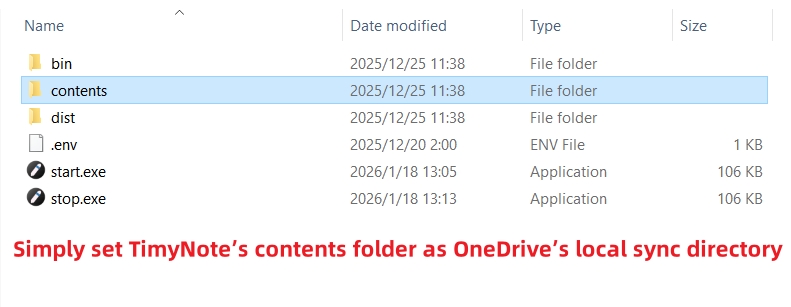
For synchronizing data across multiple PCs, this approach is both efficient and reliable. It requires no additional cost, and the configuration process is intuitive, making it accessible even for non-technical users.
In fact, this approach is not limited to OneDrive.
Any cloud storage or synchronization tool that supports local folder syncing—such as Google Drive, Dropbox, iCloud Drive, Syncthing, FreeFileSync, or Resilio Sync—can be used in the same way to synchronize TimyNote data. By placing TimyNote’s data directory inside the tool’s sync folder, data consistency can be maintained across all devices.
A key advantage of this method is that:
-
No WebDAV configuration is required
-
No additional servers or complex network setup is involved
-
It fits naturally into tools and workflows many users already rely on
For users who simply need to keep TimyNote data synchronized across multiple devices, this solution is simple, stable, and low-barrier.